OpenCode is an open-source, free AI coding assistant developed by the Anomaly team. It works directly in your terminal, desktop app, or IDE, helping you read code, modify code, run commands, and execute tests to accomplish various development tasks using natural language. Currently, it supports up to 75+ LLM providers (including Claude, GPT, Gemini, local Ollama, etc.) without locking you into any single vendor, allowing you to configure and use any LLM provider of your choice.
Compared to other AI CLIs, two points stood out most during my usage:
- By default, it does not store your code and context data; session data is only synced to official servers when you explicitly use
/shareto share a session; - It occasionally provides free models (such as mimo, minmax, and kimi) that can satisfy my daily small feature iterations and development needs.
How to Install
One-Click Installation via Official Script
The easiest way to install is via the official installation script:
curl -fsSL https://opencode.ai/install | bashInstallation via Package Managers
If you have Node.js installed locally, you can also install it via npm, as well as pnpm, bun, or yarn:
npm install -g opencode-aiFor Mac and Linux, Homebrew is recommended for installation, as updates from the official tap are more timely:
brew install anomalyco/tap/opencodeArch Linux users can use pacman or AUR:
sudo pacman -S opencode # Stable releaseparu -S opencode-bin # AUR latest releaseIf you don't want to install it on your local system, you can run it directly using the Docker image:
docker run -it --rm ghcr.io/anomalyco/opencodeWindows Users
The official recommendation is to run it in WSL for better performance and compatibility. If you prefer native Windows, you can use Chocolatey or Scoop:
choco install opencodescoop install opencodeAfter installation, simply switch to your project directory and run opencode in the terminal to launch the TUI interface. You can also directly specify a working directory:
opencodeopencode /path/to/project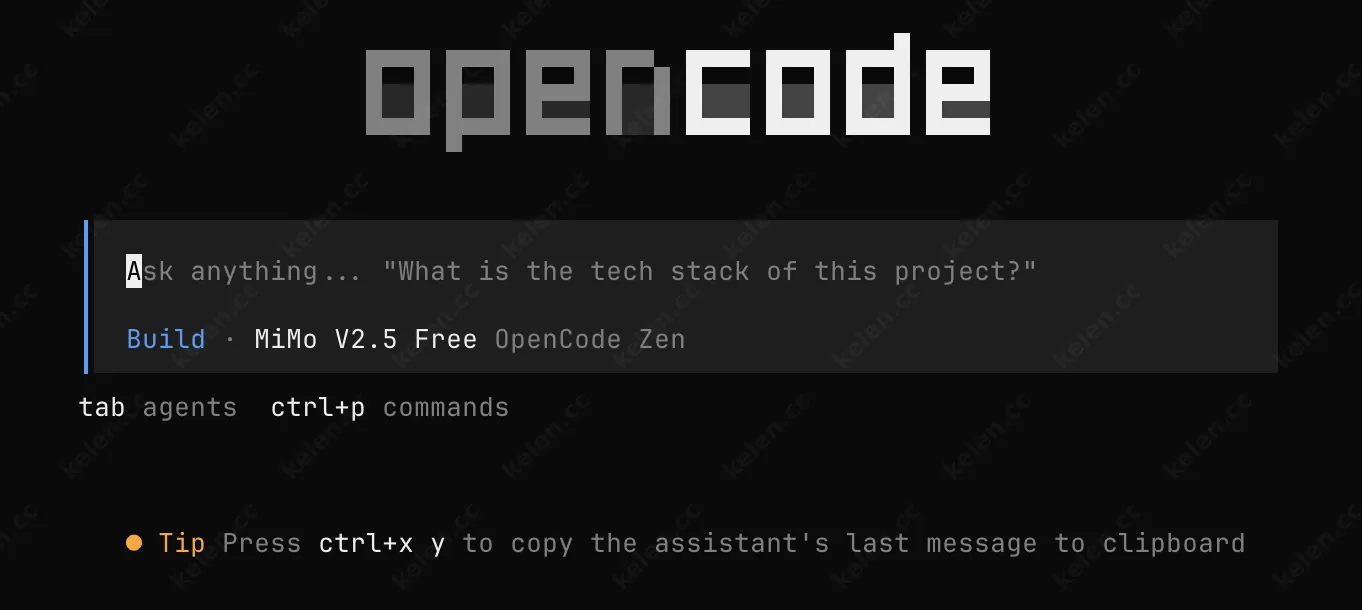
Model Configuration
OpenCode has built-in support for major providers including OpenAI, Anthropic, DeepSeek, OpenRouter, Moonshot AI, MiniMax, Groq, Ollama, and more. The setup process is very simple:
- Run
/connectin the TUI, select the corresponding provider, and enter your API Key - Run
/modelsand select a model from the list
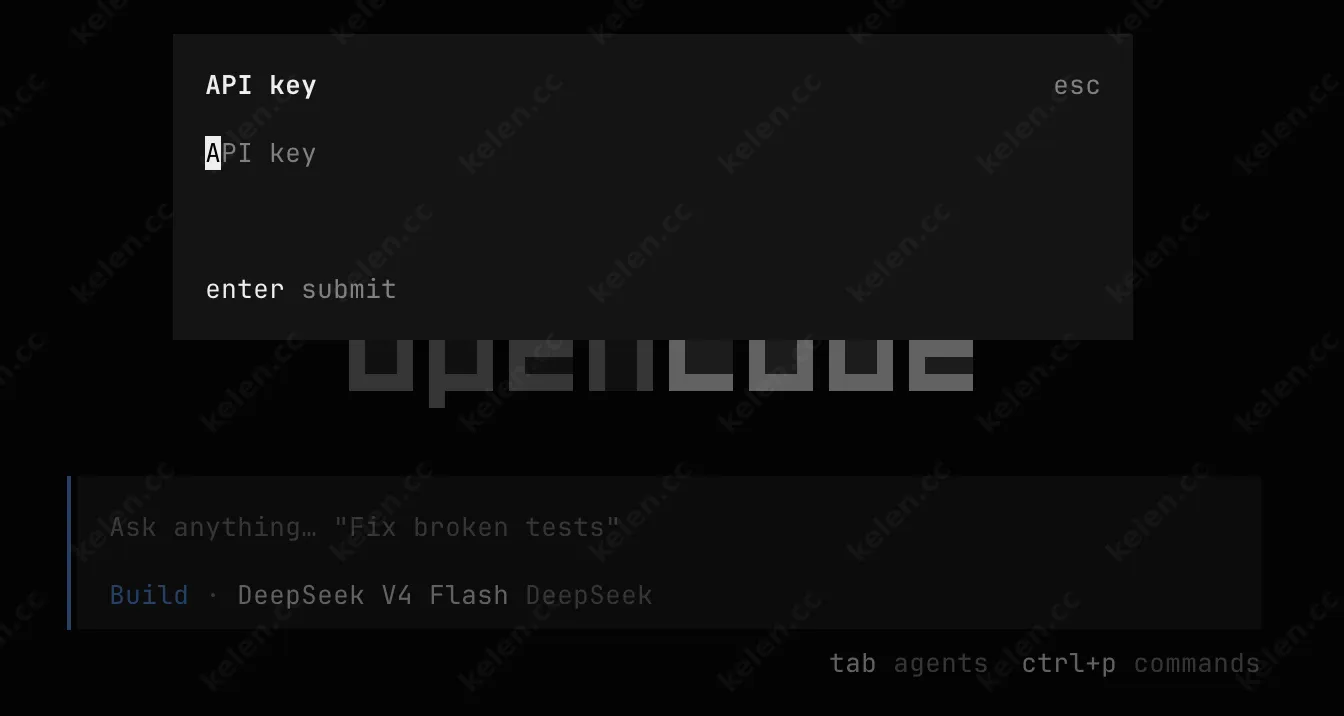
Models recommended by official documentation that perform well in OpenCode include: GPT 5.2, GPT 5.1 Codex, Claude Opus 4.5, Claude Sonnet 4.5, Gemini 3 Pro, etc.
Custom Models
For services that are not built into OpenCode but offer OpenAI-compatible interfaces (such as internal company gateways, self-hosted inference services, or aggregator platforms), you need to manually configure opencode.json.
{ "$schema": "https://opencode.ai/config.json", "provider": { "my-local-model": { "npm": "@ai-sdk/openai-compatible", "name": "My Local Model", "options": { "baseURL": "http://localhost:1234/v1", "apiKey": "your-api-key-if-any" }, "models": { "model-id-on-server": { "name": "Display Name in List" } } } }, "model": "my-local-model/model-id-on-server"}Key field descriptions:
| Field | Description |
|---|---|
my-local-model |
Custom provider ID, must be unique |
npm |
AI SDK package used by OpenCode to call this interface |
baseURL |
API endpoint address of the model service; note: do not enter the website homepage |
models |
Mapping of model IDs to configurations; key names must be real model IDs recognized by the server |
Here, let's focus on the npm field. The npm field determines which AI SDK package OpenCode uses to communicate with the provider. Selecting the wrong one will lead to HTTP 404 errors or tool call failures.
| Protocol Type | npm Value | Applicable Scenarios |
|---|---|---|
| OpenAI Compatible (Chat Completions) | @ai-sdk/openai-compatible |
Services compatible with /v1/chat/completions, most versatile |
| OpenAI Official Full API | @ai-sdk/openai |
Connecting to official OpenAI, or using services that only support /v1/responses |
| Anthropic | @ai-sdk/anthropic |
Claude series models |
@ai-sdk/google |
Gemini series models |
Selection Principles: Prioritize matching the provider's API protocol. For specific supported protocols, check the provider's integration documentation or consult their customer support. Note the differences between OpenAI protocols:
@ai-sdk/openai-compatibleis a universal compatibility layer that always targets/v1/chat/completions. It is suitable for the vast majority of third-party proxies, local model services (Ollama, vLLM, LM Studio), and gateways (LiteLLM).@ai-sdk/openaiis the official full OpenAI Provider, supporting both Chat Completions and Responses API, but defaulting towards/v1/responses. Choose it only when connecting to official OpenAI or using services that only offer/v1/responses.
The two cannot be interchanged arbitrarily; picking the wrong one will result in HTTP 404 errors or tool invocation failures.
Project Rules
If your project root directory already contains an AGENTS.md, it will be automatically loaded into the context at startup. If you maintained one with Codex previously, you can simply continue using it.
If your project doesn't have one yet, run /init in the TUI to generate it. It scans key files in the repository, asks you a few questions if code details are unclear, and writes a concise description. Focus on including:
- Architectural information that cannot be inferred from filenames alone
- Project-specific conventions and common pitfalls to avoid
If AGENTS.md already exists, /init modifies the existing file without overwriting it completely. It is recommended to commit and publish this file along with the project repository for team sharing.
Global Rules
Global rules are located by default at ~/.config/opencode/AGENTS.md and take effect for all sessions. They have an additive relationship with project-level rules: project-level rules govern specific conventions for the current directory and subdirectories, while global rules manage your personal preferences (such as specifying the response language).
Splitting Rule Files
It is generally recommended to keep AGENTS.md concise, controlling it to around 250-300 lines.
If you need to supplement the project with more rules, you can use the instructions field in opencode.json to reference other files. The configuration supports both globs and remote URLs, and the referenced content will be merged with AGENTS.md.
In scenarios such as monorepos or shared team standards, you can use a glob to import all packages/*/AGENTS.md files at once.
Agent
The capability boundary of OpenCode is determined jointly by Agents and permissions. It comes with 2 built-in primary Agents and 3 sub-Agents.
Primary Agents
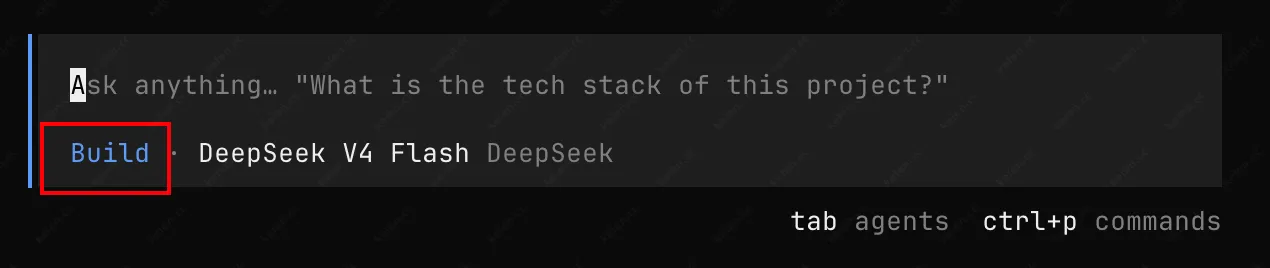
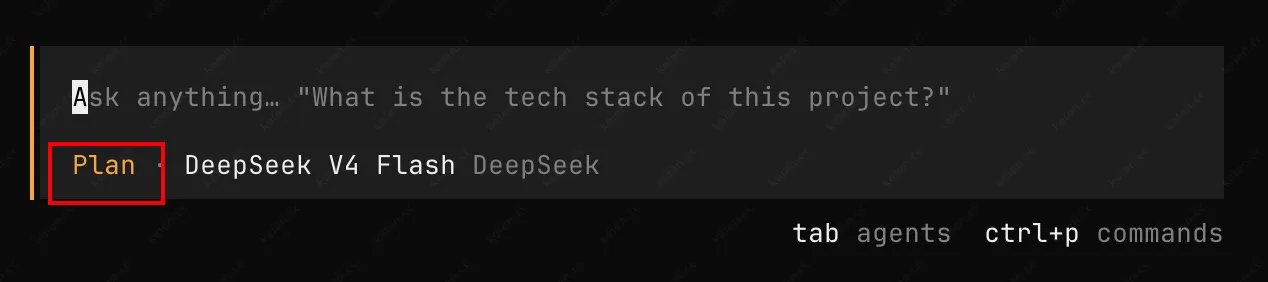
OpenCode features two built-in primary Agents, Build and Plan. The differences are as follows:
- Build: The default Agent, with all tools open and unrestricted, suited for hands-on coding scenarios.
- Plan: An analysis and planning mode. File editing and bash commands default to
ask, requiring your confirmation before execution. It is suitable for having the model review code and propose solutions without directly modifying the repository.
Press Tab in the TUI to toggle between the two modes, with the current mode displayed in the lower-left corner of the interface. My personal habit is first discussing and clarifying the solution in Plan mode, and once confirmed, hitting Tab to switch back to Build mode to let it take action.
Sub-Agents
In addition to primary Agents, OpenCode includes three built-in sub-Agents. The primary Agent invokes them automatically based on their descriptions, or you can manually specify them using @:
general: General-purpose agent with full tool permissions (excepttodo), suited for complex research and multi-step tasks, capable of running multiple work units in parallel.explore: Read-only, dedicated to rapidly exploring the codebase for finding files by patterns, searching keywords, and answering code structure questions.scout: Read-only, used to look up external documentation and dependency materials; when necessary, it clones dependency repositories into OpenCode's managed cache without polluting your workspace.
There are also several hidden system Agents (compaction, title, summary) responsible for compressing context, generating session titles, and producing summaries. They run automatically and do not appear in the selectable list.
Custom Agents
Built-in models are often not enough, which is when you need to define custom Agents. If you want to temporarily define a simple Agent, the most convenient method is writing it directly into opencode.json, though I do not recommend this approach.
{ "$schema": "https://opencode.ai/config.json", "agent": { "code-reviewer": { "description": "Reviews code for best practices and potential issues", "mode": "subagent", "model": "anthropic/claude-sonnet-4-20250514", "prompt": "You are a code reviewer. Focus on security, performance, and maintainability.", "permission": { "edit": "deny" } } }}I strongly recommend using Markdown files to create Agents for easier editing and management. Simply add frontmatter definitions to the Markdown content, with the filename serving as the Agent name. You can place them in ~/.config/opencode/agents/ (global) or .opencode/agents/ (project-level) directories. Here is an example of a simple code review Agent:
---description: Reviews code for quality and best practicesmode: subagentmodel: anthropic/claude-sonnet-4-20250514temperature: 0.1permission: edit: deny bash: deny--- You are in code review mode. Focus on code quality, edge cases, performance and security.Regarding the frontmatter options:
descriptionis required- A lower
temperatureyields more stable output (0.0-0.2 is ideal for code analysis and planning) permissionis used to restrict which tools this Agent can use.
Permission Control
Permissions can be configured independently for each tool in OpenCode, supporting three values:
allow: Execute directly without askingask: Prompt for confirmation every timedeny: Refuse execution directly
The global configuration is structured as follows, where * represents the fallback rule for all tools:
{ "$schema": "https://opencode.ai/config.json", "permission": { "*": "ask", "bash": "allow", "edit": "deny" }}Tools like bash and edit also support fine-grained rules based on arguments. The wildcard * matches any sequence of characters, and the last matching rule takes effect, so fallback rules should be written at the top:
{ "$schema": "https://opencode.ai/config.json", "permission": { "bash": { "*": "ask", "git *": "allow", "npm *": "allow", "rm *": "deny" } }}For instance, in the code review Agent mentioned earlier, we set both edit and bash to deny to prevent it from modifying files or executing code during reviews.
If you want OpenCode to run continuously without prompts, you can add --auto to automatically approve all confirmation requests, though explicitly deny-ed rules will still be blocked:
opencode --autoExtension Capabilities
MCP Servers
MCP (Model Context Protocol) is an open standard for AI to interact with external systems. OpenCode implements MCP client capabilities via the mcp-go library, supporting both local (Stdio) and remote (SSE) transport modes.
You only need to add MCP servers under the mcp field in the configuration file:
{ "$schema": "https://opencode.ai/config.json", "mcp": { "my-local-mcp-server": { "type": "local", "command": ["npx", "-y", "my-mcp-command"], "enabled": true }, "my-remote-mcp": { "type": "remote", "url": "https://my-mcp-server.com", "enabled": true, "headers": { "Authorization": "Bearer MY_API_KEY" } } }}Note that MCP tools consume context space. Servers with a large number of tools, such as GitHub MCP, can easily exhaust the context window, so enabling them on demand is recommended.
Agent Skills
A Skill is essentially a SKILL.md file containing specific instructions following the open Agent Skills specification. It is not activated by default; Agents only load skill names and descriptions. Full content is loaded on demand via the built-in skill tool only when a task matches, preventing excessive context consumption.
Skill Loading Order
OpenCode searches and loads Skills from these locations:
Project level:
opencode/skills/<name>/SKILL.md~/.claude/skills/<name>/SKILL.md~/.agents/skills/<name>/SKILL.md
Global level:
~/.config/opencode/skills/<name>/SKILL.md~/.claude/skills/<name>/SKILL.md~/.agents/skills/<name>/SKILL.md
Discovery order: Global external skills → Project external skills → OpenCode native skills → Extra configured paths → Remote skills
Structure of SKILL.md
SKILL.md must start with frontmatter, where name and description are required fields.
name must consist of 1–64 lowercase alphanumeric characters and single hyphens, and must match its directory name.
A simple SKILL.md looks like this:
---name: hello-skilldescription: A minimal greeting skill. Used when the user says "say hello to the world".--- # Hello Skill When the user asks you to "say hello to the world", please perform the following actions: 1. Output a greeting phrase in Chinese.2. Append a smiley emoji 😊 after the greeting phrase.If you want to learn how to write skills, check out this article: Complete Guide to Claude Skills: Building Your First Skill from Scratch
Summary
Overall, three highlights make OpenCode worth recommending: model independence, a polished terminal experience, and an open-source model with default local data privacy. If you previously used Claude Code or Codex, the migration effort is minimal, as AGENTS.md and skill directories can essentially be reused directly.
If you are tired of Claude and want to try a new AI CLI, OpenCode is a solid choice.